Fixed camerasFixed Angles
Cameras you place in the level that take the shot room by room, the way classic survival horror frames a room. They cut in by default, hand over to aiming and anything else that outranks them, and keep the stick's directions sensible across every cut.
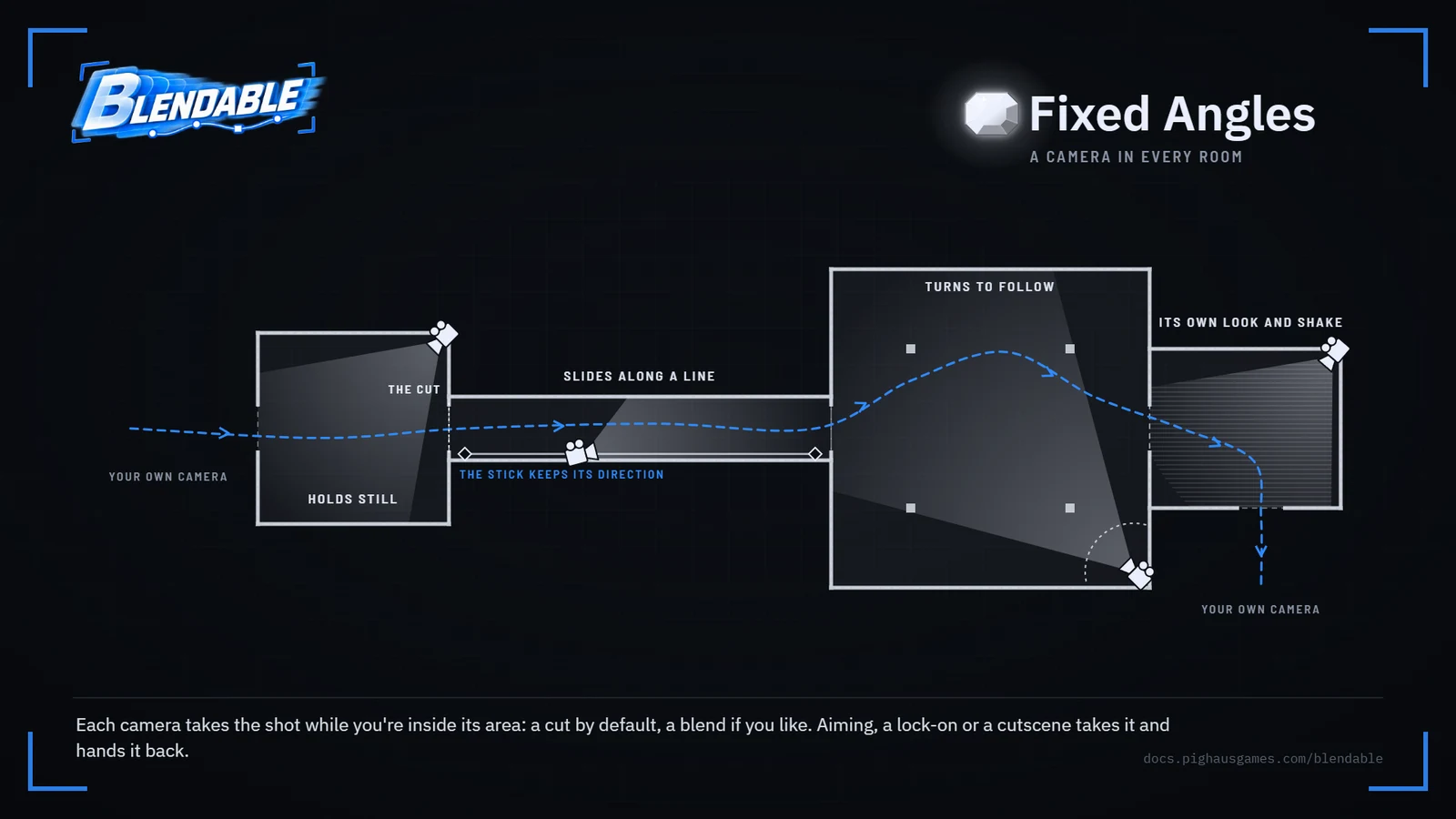
A Blendable Fixed Camera is a camera you place in the level. While the player is inside its area, it takes the shot: a held angle from a corner, a dolly down a corridor, a security feed. Walk into the next room and the next camera cuts in. That's the camera classic survival horror was built on, and it sits beside everything else Blendable does rather than replacing any of it.
The Follow Camera on your pawn does the work. It finds the fixed camera whose area you're in and lays that camera's view over its own shot, so a placed camera stays exactly where you put it. Underneath, the Follow Camera carries on following you, ready for whenever the shot comes back to it.
Placing one#
- 1
Frame the shot in the viewport.
Fly the level viewport to where the camera should stand, looking into the room.
- 2
Place it.
Choose Blendable → Place Fixed Camera Here on the toolbar, or in Tools. It stands where the viewport is, with the viewport's lens, and puts its area on the floor in front of it.
- 3
Shape the area.
Its Area is the pale box: where the player has to be for this camera to take the shot. Drag the camera into the room by its mark, in the middle of the box, and set the box's size on the panel under The Shot.
- 4
Play.
Walk in and the camera cuts in. Walk out of every fixed camera's area and your own camera comes back.
Selecting a fixed camera shows Unreal's preview of its shot in the corner of the viewport. Its gizmo and its mark sit in the middle of its area, so you pick it up by the room: drag it, by the gizmo, the mark, the area or the camera, and the whole fixed camera moves together. To put the camera somewhere else in the room, fly the viewport to the shot you want and right-click the camera: Snap Camera To The View puts it there and leaves the area where it is. Look Through It does the same as you move the view. Fixed camera tools has the rest.
Areas#
Every box, sphere and capsule on a fixed camera is its area, so an L-shaped room is two boxes rather than anything special. Also Inside adds other actors in the level: a trigger box, a volume built with the brush tools for a room of any shape, or one area two cameras share at different priorities. Areas are tested where the player stands.
Where two areas meet or overlap, the higher Priority wins. On a tie, the camera you're on keeps the shot until you're its Stay Margin past its edge, 50 cm by default, so standing in a shared doorway never flickers between the two. Past that, the area you came into most recently wins.
Taking the shot#
| Setting | What it does |
|---|---|
| Takes The Shot | the camera's switch. Off, it never takes the shot. Set Enabled switches it while playing |
| Priority | 8 by default: above the standing view and the idle camera, below aiming and the other states, lock-on, ragdoll and cutscenes |
| Blend In Time | 0 cuts straight to it, the classic way. Anything more travels through the world in a straight line from the shot on screen to this one. A camera move between two cameras takes its own way round instead |
| Blend Out Time | how long your own camera takes to come back when the player leaves every fixed camera's area from this one. 0 cuts |
| Field Of View | the camera's lens, in degrees across |
A cut is a true cut: the Follow Camera's dampers start afresh and Unreal is told the camera cut, so motion blur and the engine's temporal effects don't smear the old shot into the new one. A blend that is interrupted midway carries on from what's on screen.
Aiming, lock-on and cutscenes#
Anything with a higher priority takes the shot from a fixed camera and hands it back as it lets go: aiming and every other state at 10, a lock-on at 15, ragdoll at 20 and cutscenes at 100. Nothing about aiming is special. It's a state, so you decide how it arrives:
- Blend In Time and Blend Out Time on each of a camera preset's Camera States, 0 to cut. Left below 0, a state blends over its Rig's own time, as it always has. The Fixed Angles preset cuts to its aim and back.
- Into A State, Face, on the preset's Fixed Cameras line, is which way the camera faces as a state takes over from a fixed camera: The Character's Way, the default, so aiming looks where they face; The Fixed Camera's Way; or Where The Controls Point.
- Back To Following, Face does the same when the player leaves every area: Where The Controls Point by default.
To keep the fixed shot while aiming, give the camera a priority above the aim state, or the state one below the camera. Up on the stick then keeps meaning what the camera says, so turning to aim is your game's job.
The stick across a cut#
A cut turns the screen round. If the stick's directions turned with it, a player running forward would suddenly run sideways, or back over the border they just crossed. So across a cut the stick keeps the direction it had, until they let go or turn a long way. Controls across a cut has the rules, and the other ways to have it.
Cameras that move#
A fixed camera holds still by default. Two switches, on alone or together, let it move:
| Switch | What it does |
|---|---|
| Turn To Follow | stays where it stands and turns to keep the player at Keep Them At, a spot on screen in percent, once they've drifted past Free Drift. Turn Time is its pace, Turns Up To and Tilts Up To how far it may turn from the way it was placed, and Zoom To Keep Their Size changes the lens as they come and go |
| Slide Along A Line | rides its Track, a spline on the actor you edit like any other, keeping level with the player along it. Offset Along keeps it ahead or behind them, Lead runs it ahead of the way they're moving, and Slide Time is its pace |
With Turn To Follow, up on the stick stays the way the camera was placed, so a held stick runs in a straight line however far the camera turns. Tick Controls Turn With It to have the controls turn with the camera instead.
Forward along a path#
Up on the stick is the way a fixed camera looks, which is what a room wants. A corridor that bends, a stair or a tunnel wants forward to follow the path instead, wherever the shot looks from. Tick Forward Follows The Track and up on the stick goes the way the camera's Track runs at its point nearest the player, towards its end. The Track is drawn with arrows along it, so you can see which way forward runs at every point. Drag its points to bend it round the room.
Turned on with the Track as every camera starts it, running across the camera's own spot, the Track is first laid through the area the way the camera looks, so forward starts as it was. Rises And Falls With It tilts forward up and down with the Track too, for swimming or flying along it. Off, the default, forward stays level, which is all a character on foot needs.
Leaving every area#
Walk out of every fixed camera's area and your own camera picks up again, over the Blend Out Time of the camera you left, facing where the controls point.
In Blueprint#
| Node | What it does |
|---|---|
| Get Fixed Camera | the fixed camera holding the shot, or none |
| Is In Fixed Camera | whether one is |
| Get Fixed Camera Here | the fixed camera whose area the player is in, holding the shot or not |
| Get Fixed Camera Weight | how much of the picture is a fixed camera's, 0 to 1, all through a blend |
| Hold Fixed Camera | puts a camera on screen wherever the player is, with a blend time, until Let Go Of Fixed Camera |
| On Fixed Camera Changed | fires as the shot moves between cameras, or to and from your own camera, and says whether it cut |
| Set Enabled | on the camera itself: switches it on or off while playing |
Every setting is on Fixed camera settings, and the Fixed Angles preset puts it all together.
Go deeperHow it works inside
The Follow Camera keeps a fixed channel beside the claim ladder rather than on it. A fixed camera usually shares the standing Rig, so as far as the ladder could tell nothing would have changed. Each frame the channel asks which camera's area the player is in, checks whether anything on the ladder outranks it, and runs the change if there is one.
The fixed view goes on after the Follow Camera's last damper and its collision, and before the shakes. Any earlier and a placed camera would trail behind a running character and swing as the stick turned, which is what a point of interest's placement used to do.
While a fixed camera holds the shot, the controller is parked at the Rig's Resting Pitch, facing the camera's way or the way the stick is being kept. Look input is let go, unless the camera lets the player look around.
A camera that turns or slides keeps no memory of any one player. Each Follow Camera keeps its own note of how far its fixed cameras have turned and slid, so two players never fight over one.
Go deeperEdge cases
- A camera removed while it holds the shot hands back at once, over its Blend Out Time.
- Streamed levels. A camera counts from the moment it's loaded until it's unloaded, so a room streamed in mid-game works like any other.
- Several players. Each pawn's Follow Camera finds its own fixed camera.
- Points of interest ease off while a fixed camera has the shot and come back as it hands over. One left working could turn the controls the fixed camera parks.